 AppKeeper
Copy your app backups to Google Drive Premium
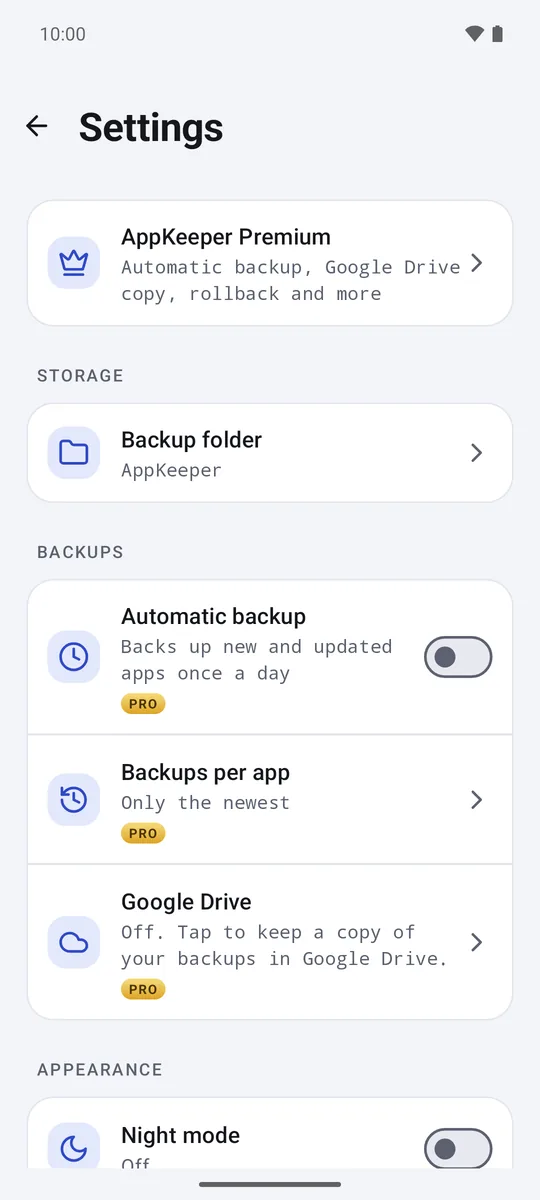
In AppKeeper, go to Settings, Google Drive and connect your Google account. Your backups are then uploaded to an "AppKeeper" folder in your own Drive after each backup.
A backup that only lives on your phone is lost with the phone. A copy in Google Drive survives a reset, a lost phone or a broken SD card, and it's waiting for you when you set up a new phone.
Turn it on
- Open Settings in AppKeeper and tap Google Drive.
- Connect your Google account and allow access in Google's own screen.
- Pick your choices (below). From now on, each new backup is uploaded after it's made.
Your choices
- Wi-Fi only or Wi-Fi and mobile data. Wi-Fi only is the default, so big apps don't use your data plan.
- AppKeeper backups or All APK files in your backup folder, including APKs you put there yourself.
Photos, videos and other files are never uploaded.
Privacy
AppKeeper can see only the files it created in your Drive; it can't see anything else there. Files go straight from your phone to your Google account and never pass through us. To stop copying, tap Disconnect in the Google Drive settings; to remove access completely, use your Google account's third-party access settings. Details are in the privacy policy.
Restoring from Drive
Backups that are only in Drive, for example on a new phone, show in the Archived tab marked Only in Drive. Restore them as usual; AppKeeper downloads the file first, checks it, and Android asks you to confirm the install.
What's uploaded with each file
Each backup in Drive carries the app's name, package name, version and backup date, so AppKeeper can list and restore it on another phone. Nothing else about you or your phone is added.
Space
Backups count toward your Google storage. Backups per app applies in Drive too, so old versions don't pile up. Disconnecting doesn't delete what's already in Drive.