 AppKeeper
Roll back an app after a bad update
Android only installs an older version of an app if you have its APK, and only after you uninstall the newer one, which deletes the app's data. So the old version has to be saved before the update.
Google Play doesn't keep old versions for you. Once an update is installed, the previous version is gone from your phone, and the store only offers the newest one. If you already have an APK of the version you want, you can go back today. If you don't, back up the apps you care about now, so the next bad update is easy to undo.
Before an update: keep a copy
- Open AppKeeper and go to the Installed tab.
- Tap the app's backup button. The backup is saved as an APK file in your backup folder.
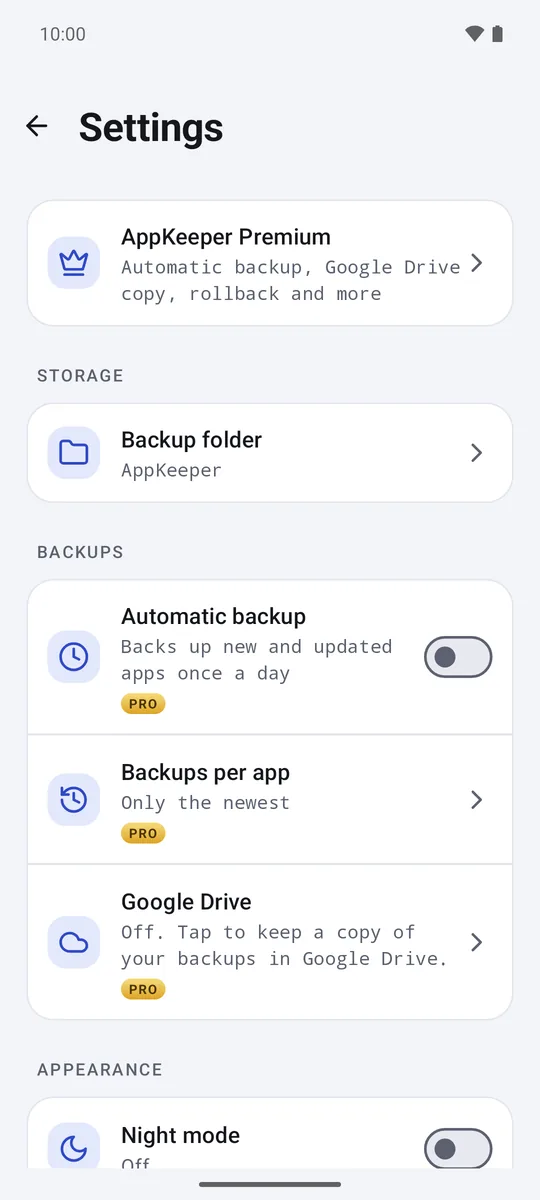
Premium With automatic backup, AppKeeper does this for you soon after each install or update. In Settings, Backups per app keeps 1, 2, 3 or 5 versions of each app, so the version before the update is still there when you need it.
Rolling back
- Go to the Installed tab and tap the app.
- Choose Roll back to v…, followed by the version of your backup.
- AppKeeper checks the backup first: that the file opens, is complete, is signed with the same key as the installed app, and was made for a phone like yours.
- Android asks you to uninstall the newer version, then to install the older one. Confirm both.
Uninstalling deletes the app's data on your phone, such as logins, settings and progress. If the app has its own backup or export, or keeps your data in an account, use that before you roll back, then sign in again afterwards.
Keep a good version
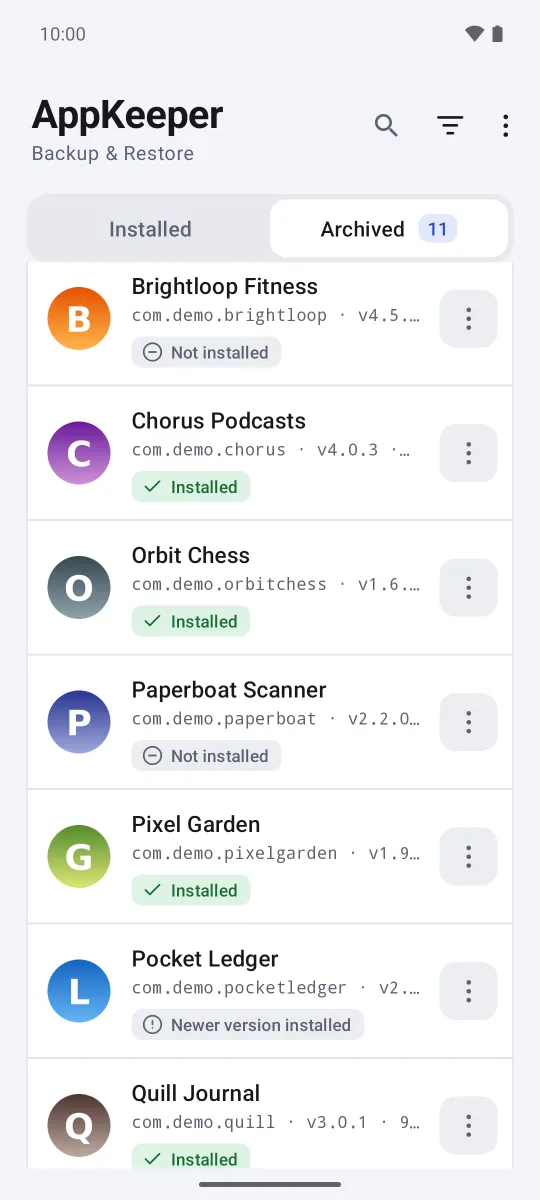
Premium When you find a version that works, pin it: in the Archived tab, open the backup's menu and tap Pin. Pinned backups are never removed automatically, however many newer versions come along.
Stop it updating again
Google Play will offer the newer version again and may install it on its own. To stop that for one app, open the app's page in Google Play, tap the menu in the top corner, and turn off auto-update. You can turn it back on once a fixed version is out.
If you don't have the old version
Without an APK of the older version, there's no reliable way back: the app's developer and Google Play are the only other sources, and Play offers only the current release. Back up now, and turn on automatic backup if you have Premium, so you're covered next time.