 AppKeeper
Restore an app you uninstalled by mistake Coming soon
This feature arrives in the next AppKeeper release.
If AppKeeper has a backup of the app, a notification appears right after the uninstall: "… was uninstalled", with Restore. Tap it to put the app back.
It's easy to remove the wrong app: a slip while tidying the home screen, a cleanup tool that was too keen, or a child with your phone. If the app is still on Google Play you can download it again, but you get the newest version, and only if it's still there. With a backup, you get back exactly what you had.
Restore from the notification
- Right after the app is uninstalled, AppKeeper shows a notification: "… was uninstalled".
- Tap Restore.
- AppKeeper checks the backup: that it opens, is complete, and was made for a phone like yours.
- Android asks you to confirm the install.
This works for any app AppKeeper has a backup of, and it's free. To make sure your apps have one, back them up from the Installed tab, or turn on automatic backup Premium so new and updated apps are backed up soon after they install.
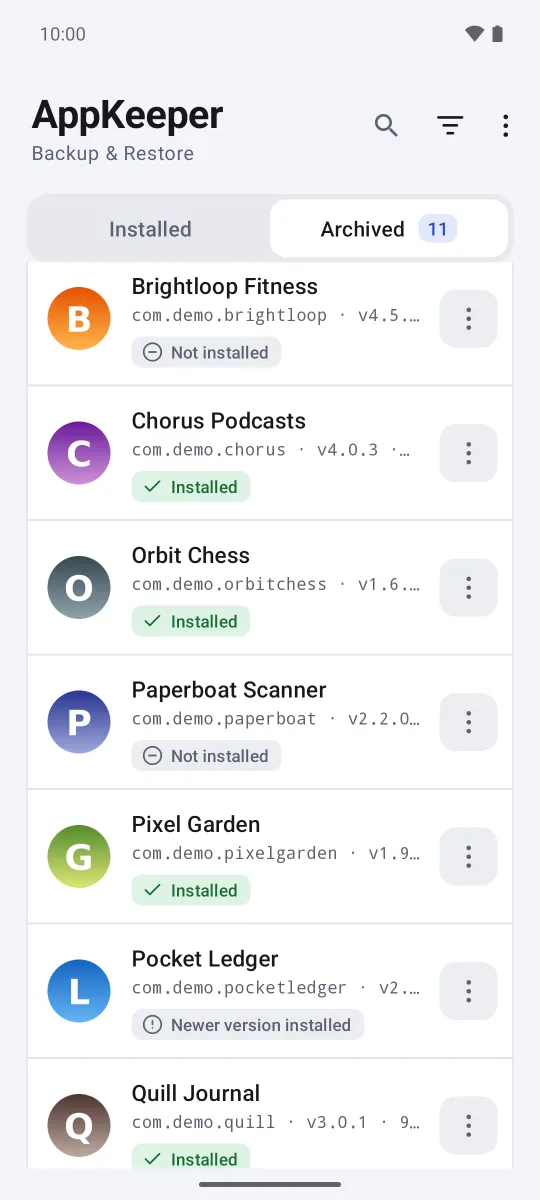
Restore it later
Missed the notification, or changed your mind a week later? The backup stays in the Archived tab, marked Not installed. Restore it from there any time.
What comes back
AppKeeper restores the app, not its data. Android deletes an app's data when it's uninstalled, and AppKeeper can't back that data up (here's why). After restoring, sign in again, or restore your data from the app's own backup if it has one. Many apps keep your data in your account, so signing in brings it back.
Make sure your apps have a backup
The notification only appears for apps AppKeeper has backed up. In the Installed tab, each app shows whether it has a backup, an outdated one, or none. Tap Back up N apps to back up all the apps that need it in one go. An outdated backup still restores, just as the older version it holds.
Notifications off?
The notification needs AppKeeper's notifications to be allowed. If you turned them off, you can still restore from the Archived tab. To turn them back on, go to Android settings, Apps, AppKeeper, Notifications.